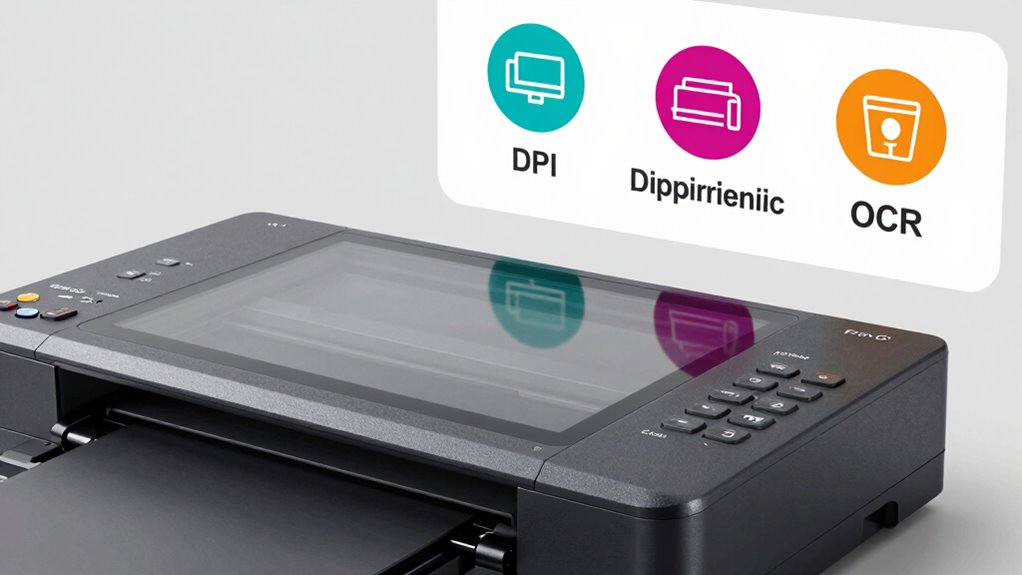

When choosing a scanner, focusing on DPI is key, as it determines how detailed your images will be; higher DPI offers sharper scans suitable for professional use, while lower DPI speeds up your workflow for everyday documents. Duplex scanning saves time by handling both sides of paper simultaneously. OCR technology converts scans into editable text, making files more versatile. To make the most of your scanner, it’s helpful to understand how these features come together—if you keep exploring, you’ll see how to optimize your setup.

Get everyday essentials delivered free with Prime
- Fast, free delivery on millions of items
- Prime Video, Amazon Music and more included
- Member-only deals all year
Key Takeaways
- DPI determines scan detail; higher DPI captures more image clarity, essential for professional or archival purposes.
- Duplex scanning enables double-sided document capture, saving time and improving workflow efficiency.
- OCR converts scanned images into editable text, crucial for digitizing documents and improving searchability.
- Balancing resolution and speed ensures optimal workflow without sacrificing necessary quality.
- Consider your primary use—high DPI and OCR are vital for detailed, editable copies; lower DPI suffices for simple sharing.
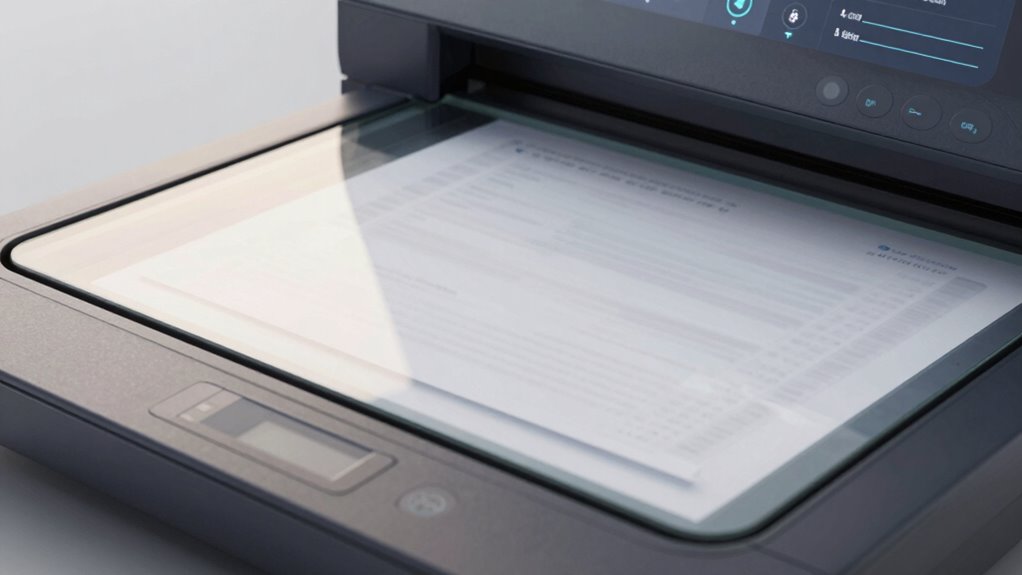
Have you ever wondered how a scanner turns physical documents into digital files? It all starts with understanding a few key factors that influence the quality and efficiency of the scanning process. One of the most important aspects is image resolution, measured in dots per inch (DPI). Higher DPI settings produce sharper, more detailed images, which is vital when you’re scanning photos or detailed graphics. However, increasing DPI also impacts scanning speed, which is the rate at which your scanner can process pages. If you set the resolution too high, you might find yourself waiting longer for each scan, especially if you’re handling large batches. Conversely, for simple text documents, a lower DPI like 300 provides a good balance between clarity and speed, allowing you to scan quickly without sacrificing readability. When choosing your resolution, consider what you’ll use the digital files for—high-resolution scans are ideal for archival purposes or professional printing, while lower resolutions work fine for everyday document storage or sharing.
Scanning speed is another essential factor that directly affects your workflow, especially if you’re dealing with many pages. It refers to how quickly your scanner can process each sheet, often measured in pages per minute (PPM). Faster scanning speeds mean you get through your workload more efficiently, but they sometimes come with a trade-off in image quality. Cheaper or more basic scanners might prioritize speed over resolution, which is acceptable for casual use but less suitable for professional tasks that demand high detail. On the other hand, high-end scanners typically offer adjustable settings, allowing you to find the right balance between speed and quality. If you’re scanning large volumes, you might prefer a model with a higher PPM rating, but keep in mind that pushing for maximum speed could reduce the clarity of your images. Adjusting settings to match your specific needs can help you avoid unnecessary delays or subpar results. Additionally, understanding image resolution and how it impacts output can help you make more informed choices about your equipment and workflow.
Beyond resolution and speed, understanding how your scanner handles duplex scanning—the ability to scan both sides of a page automatically—and OCR, or optical character recognition, can greatly streamline your workflow. But at the core of it all, getting the right image resolution and optimizing scanning speed are fundamental to producing usable digital files efficiently. Whether you’re digitizing important documents, creating high-quality images, or just making quick copies, knowing how these features work together empowers you to make smarter choices when selecting and using a scanner. In the end, balancing resolution with speed ensures you get the best results without wasting valuable time, giving you a more productive and satisfying scanning experience.
As an affiliate, we earn on qualifying purchases.
Frequently Asked Questions
How Do I Choose the Right Scanner for My Needs?
To choose the right scanner for your needs, consider what you’ll be digitizing most often. If you’re focusing on document digitization, look for a model with reliable image enhancement features to guarantee clear, readable scans. Think about the volume you’ll scan regularly and whether duplex scanning is necessary. Prioritize user-friendly interfaces and compatibility with your devices to make the process smooth. This way, you’ll get a scanner that fits your specific requirements perfectly.
What Are the Best Settings for Color Accuracy?
To get the best color accuracy, you should focus on proper color calibration and ink accuracy. Start by calibrating your scanner regularly using calibration targets or software, ensuring consistent color reproduction. Also, choose the right color profiles and set your scanner to scan in the highest bit depth available. Avoid automatic enhancements that can distort colors, and always compare scans to original colors for fine-tuning.
How Do I Troubleshoot Scanner Connectivity Issues?
Imagine you’re stuck in a tech noir film, but here’s the fix: first, check your wireless setup to make certain the scanner’s connected to your network. Then, update your driver software—think of it as giving your scanner a much-needed upgrade. Restart both your device and the scanner. If issues persist, reset your network settings or try reconnecting. These steps typically resolve most connectivity hiccups quickly.
Can Scanners Process Multiple Page Types and Sizes?
Yes, scanners can process multiple page types and sizes. You just need to guarantee your scanner supports the paper sizes you’re working with, like A4, legal, or smaller cards. Adjust the paper guides to fit different page types, and select the correct settings in your scanning software. This way, you can efficiently scan various paper sizes and page types without issues, making your workflow smoother.
What Maintenance Is Required to Keep My Scanner Optimal?
Think of your scanner like a car; regular maintenance keeps it running smoothly. You should clean the glass with a soft, lint-free cloth to prevent smudges and dust buildup. Additionally, updating drivers ensures compatibility and peak performance with your computer. By performing these simple tasks, you prevent issues like blurry scans or software glitches, ensuring your scanner stays reliable and efficient for years to come.
Conclusion
Understanding DPI, duplex, and OCR helps you navigate the world of scanners with confidence. Think of these features as the gears turning in a well-oiled machine—each one plays a vital role in delivering crisp, efficient results. When you choose a scanner that balances these elements, you’re setting yourself up for success. Remember, knowing what matters most turns a confusing jumble into a clear path—like a lighthouse guiding your way through the tech fog.
Halloween Picks
halloween
As an affiliate, we earn on qualifying purchases.