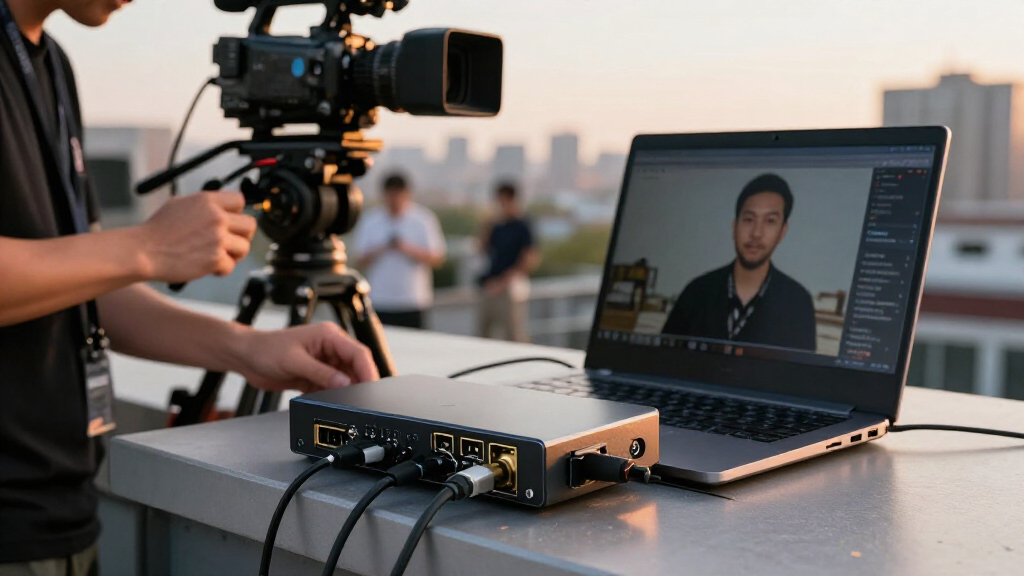
4K video capture cards vary widely in what “4K” means: some accept a 4K signal but record at 1080p, while others offer higher-resolution capture or pass-through. My best overall pick is the Elgato 4K S for buyers seeking a dedicated capture option, while the Elgato Cam Link 4K is a strong fit for turning an HDMI camera into a computer webcam, and the UGREEN HDMI Capture Card with 4K 30Hz Input and Loop-Out suits setups that need a separate display connection. The main tradeoffs are capture resolution and frame rate, USB bandwidth, pass-through support, and the simplicity of setup. A 4K input label alone does not tell you what resolution your computer can record. Read on for the full breakdown and guidance on matching a card to your source and workflow.

Get everyday essentials delivered free with Prime
- Fast, free delivery on millions of items
- Prime Video, Amazon Music and more included
- Member-only deals all year
Key Takeaways
- 4K input is not the same as 4K recording: several cards in this lineup accept 4K but list lower-resolution output, including 1080p models.
- The Elgato options serve different roles: the 4K S is the dedicated capture pick, while Cam Link 4K is aimed at HDMI camera-to-computer workflows.
- Pass-through changes how a setup works: the XIIXMASK and UGREEN loop-out models offer a path to keep a display connected while capturing.
- USB 3.0 appears across many versatile choices, while USB 2.0 models are more limited for buyers prioritizing smoother, higher-resolution capture.
- Audio connections can settle the choice: HeavenBird adds a microphone input, a useful distinction for simple streaming setups that need an extra audio path.
| Audio Express AXHDCAP 4K HDMI to USB 2.0 Video Capture Card |  | Best for Multi-OS Basics | Hardware interface: HDMI, USB 2.0 | Maximum capture resolution: 1920×1080 at 30 fps | Maximum HDMI input: 3840×2160 at 30 Hz | VIEW LATEST PRICE | See Our Full Breakdown |
| Elgato 4K S Capture Card |  | Best for 4K60 Gaming | Capture resolution: Up to 4K60 | Passthrough resolution: 1440p120 or 1080p240 | HDR support: HDR10 capture on Windows | VIEW LATEST PRICE | See Our Full Breakdown |
| HDMI to USB 2.0 Video Capture Card, 1080p |  | Best Compact Starter Pick | Interface: HDMI input, USB 2.0 Type-A | Maximum HDMI input: 3840×2160 at 30 Hz | Maximum video output: 1920×1080 at 30 fps | VIEW LATEST PRICE | See Our Full Breakdown |
| HeavenBird USB 3.0 Video Capture Card with Microphone Input |  | Best for 1080p60 Commentary | Interface: USB 3.0 | Maximum capture resolution: 1080p | Maximum frame rate: 60 fps | VIEW LATEST PRICE | See Our Full Breakdown |
| 4K HDMI Video Capture Card with USB 2.0 |  | Best for 1080p60 on USB 2.0 | Hardware interface: USB 2.0 | Video capture resolution: 1080p at 60 fps | HDMI input: Up to 4K at 60 Hz | VIEW LATEST PRICE | See Our Full Breakdown |
| Elgato Cam Link 4K HDMI Capture Card |  | Best for Camera-Based Streaming | Hardware interface: USB 3.0 | Capture resolution: 1080p at 60 fps; up to 4K at 60 fps with compatible cameras | Compatible devices: PC, Mac, iPad | VIEW LATEST PRICE | See Our Full Breakdown |
| 4K HDMI to USB 3.0 Video Capture Card |  | Best for Broad Device Compatibility | HDMI input: Up to 4K at 30Hz | Capture resolution: Up to 2K at 30Hz or 1080p at 60Hz | Hardware interfaces: HDMI, USB 3.0, USB Type-C | VIEW LATEST PRICE | See Our Full Breakdown |
| XIIXMASK USB 3.0 HDMI Capture Card with 4K Pass-Through |  | Best for 4K Pass-Through Gaming | Hardware interface: USB 3.0 | HDMI input and pass-through: Up to 4K at 60Hz | Capture resolution: 1080p at 60 fps; 1440p at 30 fps | VIEW LATEST PRICE | See Our Full Breakdown |
| UGREEN HDMI Video Capture Card, 4K Input, 2K at 30Hz and 1080p at 60FPS Output |  | Best for Flexible USB Connections | Hardware interfaces: HDMI, USB 3.0, USB Type-C | Input resolution: Up to 4K at 30Hz | Output resolution: Up to 2K at 30Hz or 1080p at 60FPS | VIEW LATEST PRICE | See Our Full Breakdown |
| USB 3.0 HDMI Capture Card for 1080p 60fps Streaming |  | Best for Simple 1080p60 Setup | Interface: USB 3.0 | Capture resolution: 1080p at 60fps | HDMI input: 4K | VIEW LATEST PRICE | See Our Full Breakdown |
| Guermok 4K HDMI to USB 3.0 Video Capture Card, 1080p 60fps |  | Best Compact Pick | Maximum input resolution: 4K at 30Hz | Maximum capture output: 1080p at 60fps or 2K at 30fps | Interfaces: HDMI, USB 3.0, USB-C | VIEW LATEST PRICE | See Our Full Breakdown |
| UGREEN HDMI Capture Card with 4K 30Hz Input and Loop-Out |  | Best for Low-Latency Monitoring | Capture resolution: 1080p at 60fps or 2K at 30fps | HDMI input and loop-out: 4K at 30Hz | Hardware interface: USB 3.0 | VIEW LATEST PRICE | See Our Full Breakdown |
| j5create 4K HDMI Video Capture Card (JVA11) |  | Best for High-Resolution Capture | Model: JVA11 | Maximum capture modes: 4K at 30fps, 2K at 60fps, 1080p at 120fps | USB connection: USB-C 3.2 Gen 1 | VIEW LATEST PRICE | See Our Full Breakdown |
| HDMI to USB 2.0 Video Capture Card, 4K Input, 1080p 30fps Output |  | Best for Basic Full-HD Recording | Maximum input resolution: 3840×2160 at 30Hz | Maximum output resolution: 1920×1080 at 30Hz | Interface: HDMI, USB 2.0 | VIEW LATEST PRICE | See Our Full Breakdown |
| Rybozen HDMI Video Capture Card, 1080p 60fps |  | Best for Gameplay Pass-Through | Maximum capture resolution: Up to 1080p | HDMI input support: Up to 4K at 60Hz; not 4K at 120Hz or 144Hz | Output support: Up to 2K at 30Hz | VIEW LATEST PRICE | See Our Full Breakdown |
More Details on Our Top Picks
Audio Express AXHDCAP 4K HDMI to USB 2.0 Video Capture Card
I’d choose the Audio Express AXHDCAP for straightforward capture when compatibility matters more than frame rate or 4K recording. It accepts an HDMI signal up to 3840×2160 at 30 Hz, but capture tops out at 1080p30 over USB 2.0. That distinction matters: a 4K source can connect, but the recorded stream is not 4K. Compared with the HeavenBird USB 3.0 Video Capture Card, it has broader listed system support, including Linux and Android with OTG, while HeavenBird offers smoother 1080p60 capture and microphone ports. Plug-and-play setup and stereo audio suit basic streaming or screen sharing without extra power. The tradeoff is a 30 fps ceiling, so I’d skip it for fast gameplay or anyone seeking a true 4K capture card.
Pros:- Accepts HDMI input up to 3840×2160 at 30 Hz
- Captures stereo audio with low-latency preview
- Plug-and-play operation requires no drivers or external power
- Listed support includes Windows, macOS, Linux, and Android with OTG
Cons:- Capture is limited to 1920×1080 at 30 fps over USB 2.0
- Does not add HDMI output to a computer or laptop
- Not suited to smooth high-frame-rate gameplay capture
Best for: Streamers or presenters using Windows, macOS, Linux, or an OTG-compatible Android device who need simple 1080p30 HDMI capture.
Not ideal for: Gamers who want 1080p60 or 4K recording, and anyone who needs HDMI output from a computer.
- Hardware interface:HDMI, USB 2.0
- Maximum capture resolution:1920×1080 at 30 fps
- Maximum HDMI input:3840×2160 at 30 Hz
- Audio:Stereo
- Operating systems:Windows 10 and later, macOS 10.13 and later, Linux, Android devices with OTG support
- Setup:Plug and play; no drivers or external power required
- Compatible platforms:Nintendo Switch, PlayStation
Our verdict“Choose the AXHDCAP for uncomplicated, cross-platform 1080p30 capture, but pick the HeavenBird if 1080p60 matters more.”
Elgato 4K S Capture Card
The Elgato 4K S is the clear choice in this group when the goal is capturing gameplay at 4K60, rather than merely connecting a 4K source and recording at a lower resolution. Its passthrough supports 1440p120 or 1080p240, with VRR passthrough to keep a compatible gaming display responsive while the capture feed runs. Compared with the Audio Express AXHDCAP and the other USB 2.0 options here, it offers a much higher capture ceiling and high-frame-rate passthrough, but asks for a capable USB-C host. HDR10 capture is limited to Windows, so Mac and compatible iPad users should not choose it for HDR recording. The 3.5 mm audio input also gives creators an extra routing option; the tradeoff is that its strongest features depend on the right computer and setup.
Pros:- Captures gameplay at up to 4K60
- Passthrough supports 1440p120 or 1080p240
- VRR passthrough supports compatible variable-refresh gaming setups
- Includes a 3.5 mm analog audio input
Cons:- HDR10 capture is available on Windows only
- Requires a USB-C port and compatible system specifications
- More capability than needed for buyers recording only basic 1080p video
Best for: PC and console gamers with a compatible USB-C system who want 4K60 capture, high-refresh passthrough, and VRR support.
Not ideal for: Buyers using older systems without suitable USB-C performance, or Mac users who specifically need HDR10 capture.
- Capture resolution:Up to 4K60
- Passthrough resolution:1440p120 or 1080p240
- HDR support:HDR10 capture on Windows
- Hardware interface:USB 3.0 Type-C
- Analog audio input:3.5 mm
- Operating systems:Windows 11, macOS 13 or later, compatible iPadOS devices
- Weight:0.09 kg
- Dimensions:0.67 × 4.41 × 2.83 inches
Our verdict“Pick the 4K S for a capable gaming setup where 4K60 capture and high-refresh passthrough matter more than broad host simplicity.”
HDMI to USB 2.0 Video Capture Card, 1080p
This compact USB 2.0 card makes sense for a basic capture workflow that needs to travel easily. It accepts HDMI input up to 3840×2160 at 30 Hz, but sends video to the computer at 1080p30; I’d treat “4K” as an input compatibility note, not a promise of 4K recording. Its 64 × 28 × 13 mm body and 20 g weight are notably easier to pack than the larger HeavenBird unit, though the HeavenBird USB 3.0 is the better fit for smoother 1080p60 capture and commentary connections. This model supports common capture software and lists Windows, macOS, Linux, and Android compatibility, with no external supply required. The clear compromise is USB 2.0 bandwidth and a 30 fps cap, which make it a poor match for fast gameplay.
Pros:- Small 64 × 28 × 13 mm body weighs 0.02 kg
- Accepts HDMI input up to 3840×2160 at 30 Hz
- Works with common capture software and requires no external power
- Lists Windows, macOS, Linux, and Android compatibility
Cons:- Maximum video output is 1920×1080 at 30 fps
- USB 2.0 limits capture performance compared with USB 3.0 alternatives
- No dedicated microphone input or audio output is listed
Best for: Traveling presenters, students, and casual streamers who want a very small HDMI-to-USB adapter for 1080p30 capture.
Not ideal for: Gameplay creators who need 60 fps, 4K recording, or dedicated microphone and audio-output ports.
- Interface:HDMI input, USB 2.0 Type-A
- Maximum HDMI input:3840×2160 at 30 Hz
- Maximum video output:1920×1080 at 30 fps
- Video formats:YUV/JPEG
- Audio format:L-PCM
- Supported operating systems:Windows, macOS, Linux, Android
- Dimensions:64 × 28 × 13 mm
- Weight:0.02 kg
Our verdict“Choose this compact starter card for portable 1080p30 capture, but move to the HeavenBird if you need 60 fps or commentary ports.”
HeavenBird USB 3.0 Video Capture Card with Microphone Input
For creators who value smooth 1080p footage and live commentary over 4K recording, the HeavenBird USB 3.0 is the more practical pick than the USB 2.0 cards in this batch. It captures up to 1080p at 60 fps, which gives gameplay and motion-heavy demonstrations a cleaner look than the 30 fps ceiling on the Audio Express AXHDCAP. Its 3.5 mm microphone input and audio output also support a more direct commentary setup, although mixing may still take configuration in OBS. The title’s 4K wording should not be read as 4K capture: the supplied data lists a 1080p maximum. Compared with the Elgato 4K S, it gives up 4K60 capture, high-refresh passthrough, and VRR, but it suits creators whose target is 1080p60.
Pros:- Captures up to 1080p at 60 fps
- USB 3.0 interface suits smoother capture than the USB 2.0 picks
- 3.5 mm microphone input and audio output support commentary workflows
- Plug-and-play operation without additional drivers
Cons:- Capture resolution is listed as 1080p, not 4K
- Audio mixing may require configuration in OBS
- Listed Mac compatibility is limited to Mac OS without a specific version range
Best for: Streamers recording console or camera video at 1080p60 who want a microphone input and audio output for commentary.
Not ideal for: Buyers seeking actual 4K capture, high-refresh passthrough, VRR, or support for newer macOS versions not listed in the product data.
- Interface:USB 3.0
- Maximum capture resolution:1080p
- Maximum frame rate:60 fps
- Microphone input:3.5 mm
- Audio output:3.5 mm
- Compatible operating systems:Linux, Mac OS, Windows 7, Windows 8
- Dimensions:5.87 × 4.92 × 1.42 inches
- Warranty:2 years
Our verdict“Choose HeavenBird for 1080p60 streaming with commentary connections; choose the Elgato 4K S if you need genuine 4K capture.”
4K HDMI Video Capture Card with USB 2.0
This adapter stands out among the USB 2.0 options by listing 1080p60 recording, making it a better fit for smoother motion than the Audio Express AXHDCAP or the 1080p30 compact card. Its HDMI input accepts up to 4K at 60 Hz, but the capture output remains 1080p; buyers should not confuse source compatibility with 4K recording. The small 2.4 × 1.18 × 0.67 inch body and support for Windows, Android, and macOS help with simple desk or mobile setups, while simultaneous audio and video capture keeps basic streaming straightforward. Unlike the HeavenBird USB 3.0, it uses USB 2.0 and does not list microphone or audio-output jacks. I’d choose it for a compact 1080p60 workflow, not for a 4K production setup.
Pros:- Supports 1080p60 recording
- Accepts HDMI input up to 4K at 60 Hz
- Compact dimensions suit portable setups
- Captures video and audio simultaneously and works with OBS and VLC
Cons:- Recording output is limited to 1080p, not 4K
- Uses USB 2.0 despite the 60 fps capture claim
- Requires third-party software for capture and streaming
Best for: Casual streamers and mobile creators who need compact 1080p60 HDMI capture and use Windows, Android, or macOS.
Not ideal for: Creators who need native 4K capture, separate microphone routing, or a USB 3.0 connection for a more demanding setup.
- Hardware interface:USB 2.0
- Video capture resolution:1080p at 60 fps
- HDMI input:Up to 4K at 60 Hz
- Operating systems:Windows, Android, macOS
- AV output:YUV
- Compatible devices:Camcorder, personal computer
- Weight:100 g
- Dimensions:2.4 × 1.18 × 0.67 inches
Our verdict“Pick this card for compact 1080p60 capture over USB 2.0, but choose the Elgato 4K S for actual 4K recording.”
Elgato Cam Link 4K HDMI Capture Card
I’d choose the Elgato Cam Link 4K when the source is a camera and clean, low-latency video matters more than capturing a console feed. It connects compatible DSLR, mirrorless, camcorder, action camera, or iPhone sources to a computer for streaming, recording, or calls, and works with tools such as OBS Studio, Zoom, and Discord. Its stated 4K60 capability is a step beyond the 4K30 input listed for the UGREEN HDMI Video Capture Card, but that higher frame rate depends on the camera and the latest Cam Link model. For routine streaming, the specified 1080p60 capture is the clearer expectation. The tradeoff is a camera-focused, USB 3.0 dongle rather than a pass-through setup for playing on a separate display; buyers should also verify their exact camera and Cam Link version before relying on 4K60.
Pros:- Supports 1080p at 60 fps and up to 4K at 60 fps with compatible equipment
- Accepts video from cameras, camcorders, action cameras, and iPhone
- Low-latency video suits live calls and streaming where sync matters
- Works with popular apps including OBS Studio, Zoom, and Discord
Cons:- 4K60 depends on a compatible camera and the latest Cam Link 4K model
- Specifications can vary between 4K30 and 4K60 depending on the setup
- Does not list HDMI pass-through for viewing a separate live display
Best for: Streamers and presenters connecting a compatible camera to a PC, Mac, or iPad for low-latency video in OBS, Zoom, or Discord.
Not ideal for: Console players who want HDMI pass-through to a gaming display, or buyers who need guaranteed 4K60 without checking camera and device compatibility.
- Hardware interface:USB 3.0
- Capture resolution:1080p at 60 fps; up to 4K at 60 fps with compatible cameras
- Compatible devices:PC, Mac, iPad
- Compatible sources:DSLR, mirrorless, camcorder, action camera, iPhone
- Supported software:OBS Studio, Zoom, Discord
- Weight:20.14 g
- Dimensions:3.19 x 1.22 x 0.47 inches
- Included items:USB 3.0 extension cable, Quick Start Guide
Our verdict“Choose the Cam Link 4K for a compatible camera-based streaming setup; choose a pass-through card instead if console play-through is part of your plan.”
4K HDMI to USB 3.0 Video Capture Card
This compact card is a flexible pick for buyers who switch between consoles, cameras, and different operating systems. It accepts 4K HDMI input at 30Hz, but capture tops out at 2K30 or 1080p60, so the source’s 4K signal is not a promise of 4K recording. That distinction matters: the Elgato Cam Link 4K lists capture up to 4K60 with compatible cameras, while this option makes more sense when broad compatibility and straightforward 1080p streaming are the priority. USB 3.0 and USB-C connectivity, a bundled adapter, and plug-and-play operation make it convenient for a portable setup. The compromises are the lower capture ceiling and the need for OTG support on tablets; it is not the pick for someone seeking full-resolution 4K capture.
Pros:- Accepts HDMI input up to 4K at 30Hz
- Captures up to 1080p at 60Hz or 2K at 30Hz
- Supports Windows, macOS, Linux, and Android
- Includes USB-C adapter and has a compact aluminum shell
Cons:- Capture resolution is below its maximum HDMI input resolution
- Does not provide the listed 4K capture capability of the Elgato Cam Link 4K
- Tablet use requires OTG support to be enabled
Best for: Streamers who use a mix of consoles or cameras and need a compact capture device compatible with Windows, macOS, Linux, or Android.
Not ideal for: Creators whose workflow requires recorded 4K video or Android tablet use without OTG support.
- HDMI input:Up to 4K at 30Hz
- Capture resolution:Up to 2K at 30Hz or 1080p at 60Hz
- Hardware interfaces:HDMI, USB 3.0, USB Type-C
- Compatible operating systems:Windows 7/8/10/11, macOS, Linux, Android
- Compatible software:OBS, Zoom, VLC, Twitch Studio
- Compatible devices:PS4, PS5, Xbox, Switch, DSLR cameras, TV boxes
- Special features:Plug-and-play, ultra-low latency, compact design, aluminum alloy shell
- Included items:Capture card, USB 3.0 to USB-C adapter, user manual
Our verdict“Pick this for versatile 1080p60 capture across several device types, not for recording a 4K HDMI source at full resolution.”
XIIXMASK USB 3.0 HDMI Capture Card with 4K Pass-Through
The main reason I’d put the XIIXMASK on a gaming desk is its 4K60 HDMI pass-through: you can send a high-resolution signal onward while the computer captures at up to 1080p60 or 1440p30. That split is useful for keeping the local display signal at 4K60 without treating the captured stream as a 4K recording. Compared with the 4K HDMI to USB 3.0 Video Capture Card, this model specifies pass-through and adds a 3.5 mm mic input for commentary. Its capture ceiling still falls short of the Elgato Cam Link 4K’s stated 4K capture mode, so camera creators seeking full-resolution recordings should look elsewhere. The audio workflow also has a wrinkle: OBS may need restarting after audio setup, and the card does not record party chat.
Pros:- Supports 4K60 HDMI input and pass-through
- Captures up to 1080p at 60 fps or 1440p at 30 fps
- Includes a 3.5 mm microphone or headset input
- Supports Windows, macOS, Linux, Android, and iPadOS 17 or later
Cons:- Capture resolution is limited to 1080p60 or 1440p30, not 4K
- Does not record party chat
- OBS may need to be restarted after audio setup to restore sound output
Best for: Console streamers who want 4K60 pass-through to a display while capturing gameplay at 1080p60 and adding microphone commentary.
Not ideal for: Creators who need 4K recordings, rely on captured party chat, or want an audio setup that does not require restarting OBS.
- Hardware interface:USB 3.0
- HDMI input and pass-through:Up to 4K at 60Hz
- Capture resolution:1080p at 60 fps; 1440p at 30 fps
- Audio input:3.5 mm microphone or headset
- Compatible operating systems:Windows 7/8/8.1/10, macOS, Linux, Android, iPadOS 17 or later
- Compatible devices:Laptop, PS4/PS5, Xbox, Switch 1/2, PC, Mac, camera
- Weight:0.15 kg
- Included items:Capture card, user manual, USB 3.0 to USB-A/USB-C cable
Our verdict“Choose this for 4K60 display pass-through with a 1080p gaming stream; skip it if 4K capture or party-chat recording is required.”
UGREEN HDMI Video Capture Card, 4K Input, 2K at 30Hz and 1080p at 60FPS Output
I’d shortlist this UGREEN capture card for a laptop or tablet setup that needs both USB-A and USB-C options, plus a straightforward 1080p60 stream. Its HDMI input reaches 4K30, while output is limited to 2K30 or 1080p60; that makes it more suitable for capturing a downscaled source than recording 4K footage. Unlike the XIIXMASK, it does not list HDMI pass-through, so it cannot serve the same role for keeping a separate gaming display connected. In exchange, the aluminum casing, driver-free operation, and broad OS support make it a practical one-way HDMI-to-USB option. Buyers should check HDCP settings on console sources, and USB-C iPad use requires iPadOS 17 or later. The 5 Gbps transfer specification does not change the stated output-resolution limits.
Pros:- Offers USB-A and USB-C connections for different host devices
- Captures up to 1080p at 60FPS or 2K at 30Hz
- Driver-free compatibility with Windows, macOS, and Linux
- Lightweight aluminum alloy casing
Cons:- HDMI input is limited to 4K at 30Hz and output does not reach 4K
- One-way HDMI-to-USB signal flow does not provide pass-through
- Some console sources require HDCP to be disabled; USB-C iPad use requires iPadOS 17 or later
Best for: Console and camera users who need a simple HDMI-to-USB capture path with both USB-A and USB-C connections, including compatible newer iPads.
Not ideal for: Anyone who needs HDMI pass-through, full 4K recording, or USB-C iPad support on an iPad running an earlier OS version.
- Hardware interfaces:HDMI, USB 3.0, USB Type-C
- Input resolution:Up to 4K at 30Hz
- Output resolution:Up to 2K at 30Hz or 1080p at 60FPS
- Data transfer speed:5 Gbps
- Compatible operating systems:Windows 11/10/8.1/7, macOS, Linux
- Compatible devices:Computers, smartphones, tablets, Nintendo Switch, Xbox, PlayStation, Meta Quest 3/2
- Minimum iPadOS version:17
- Casing and weight:Aluminum alloy; 50 g
Our verdict“Choose the UGREEN for flexible USB-A/USB-C connectivity and 1080p60 capture, not for pass-through gaming or 4K recording.”
USB 3.0 HDMI Capture Card for 1080p 60fps Streaming
This card is a straightforward fit for someone who wants 1080p60 capture without a complicated setup. It accepts 4K HDMI input, but its listed capture resolution is 1080p60, so 4K describes the incoming signal rather than the recorded output. That makes it a simpler, more limited alternative to the UGREEN HDMI Video Capture Card, which adds 2K30 output and USB-C connectivity. Here, the appeal is plug-and-play operation with OBS Studio, Streamlabs, or XSplit and support for common consoles, computers, and cameras. The tradeoffs are a USB 3.0 port requirement and support for only Windows and macOS in the supplied specs. I’d treat it as a basic streaming bridge, not a 4K capture card for creators who need high-resolution recordings.
Pros:- Captures HDMI video at 1080p and 60fps
- Plug-and-play setup requires no drivers
- Works with consoles, computers, and cameras
- Supports OBS Studio, Streamlabs, and XSplit
Cons:- 4K applies to HDMI input; the listed capture resolution is 1080p
- Requires a USB 3.0 port
- Listed operating system support is limited to Windows and macOS
Best for: Beginner streamers using a Windows or Mac computer who want to capture console or camera video at 1080p60 through OBS or similar software.
Not ideal for: Creators who need recorded 4K or 2K video, use Linux or Android, or lack a USB 3.0 port.
- Interface:USB 3.0
- Capture resolution:1080p at 60fps
- HDMI input:4K
- Compatible operating systems:Windows, macOS
- Compatible devices:PS5, PS4, Nintendo Switch, Xbox, PC, cameras
- Supported software:OBS Studio, Streamlabs, XSplit
- System requirement:USB 3.0 port
- Weight and dimensions:0.21 kg; 1 x 1 x 2.7 inches
Our verdict“Pick this for uncomplicated 1080p60 streaming on a Windows or Mac computer, but choose a higher-resolution capture option if 4K recording matters.”
Guermok 4K HDMI to USB 3.0 Video Capture Card, 1080p 60fps
The Guermok is a small, straightforward choice for capturing a 4K-source signal when 1080p at 60fps is enough for your recording or stream. Its 4K specification describes input support, not 4K capture: output tops out at 1080p 60fps or 2K 30fps. Compared with the j5create JVA11, which can capture 4K at 30fps and higher-frame-rate 1080p, Guermok is the simpler, more limited option. Its appeal is portability, no external power, and both USB-A and USB-C connectivity via the included adapter. I’d choose it for a lightweight setup with common capture software, but skip it if you need true 4K recording, HDMI pass-through, or a direct casting solution; capture software is required, and USB 3.0 is recommended for stable performance.
Pros:- Captures up to 1080p at 60fps for smooth full-HD video
- Accepts HDMI input up to 4K at 30Hz
- Compact, plug-and-play design needs no external power
- Supports USB-A and USB-C connections and common capture software
Cons:- Does not capture in 4K; maximum output is 2K at 30fps
- Requires capture software and cannot directly cast to a display
- HDMI-to-USB transmission may have slight latency, and USB 3.0 is recommended
Best for: Streamers and students who want a compact, no-external-power card for 1080p 60fps capture from a console or camera.
Not ideal for: Creators who need native 4K recordings, HDMI pass-through for monitoring, or direct display casting without capture software.
- Maximum input resolution:4K at 30Hz
- Maximum capture output:1080p at 60fps or 2K at 30fps
- Interfaces:HDMI, USB 3.0, USB-C
- Transmission direction:HDMI to USB
- Operating systems:Windows 10/11, macOS 10.15 or later, Linux, Android
- Recommended connection:USB 3.0
- Minimum memory:4GB RAM
- Included accessories:USB 3.0 to USB-C adapter and user manual
Our verdict“Choose the Guermok for portable 1080p 60fps capture, but pick the j5create JVA11 if you need actual 4K recording.”
UGREEN HDMI Capture Card with 4K 30Hz Input and Loop-Out
The UGREEN’s main advantage over the Guermok is its 4K HDMI loop-out, which lets a connected display monitor the source while the computer captures video. That makes it a better fit for console play or camera setups where seeing the live signal matters. Capture remains limited to 1080p at 60fps or 2K at 30fps, so the 4K label refers to input and loop-out rather than recorded resolution. The aluminum casing, plug-and-play setup, and USB-A and USB-C connectivity make it a flexible desktop option, while support for MJPEG and YUY2 gives compatible software format choices. I’d favor this over the Guermok for pass-through monitoring, but not for native 4K recording; it also excludes iPhone data acquisition and Fire TV Stick use.
Pros:- 4K 30Hz HDMI input and loop-out support separate monitoring
- Captures up to 1080p at 60fps or 2K at 30fps
- USB-A and USB-C connectivity with plug-and-play setup and no external power
- Works with Windows, macOS, Linux, and Android
Cons:- Capture output is not 4K
- Does not support iPhone as a data acquisition device
- Not compatible with Fire TV Stick
Best for: Console players and camera operators who want a separate 4K display feed while capturing at 1080p 60fps or 2K 30fps.
Not ideal for: Buyers who need 4K capture, iPhone data acquisition, or compatibility with Fire TV Stick.
- Capture resolution:1080p at 60fps or 2K at 30fps
- HDMI input and loop-out:4K at 30Hz
- Hardware interface:USB 3.0
- Video formats:MJPEG, YUY2
- Operating systems:Windows, macOS, Linux, Android 5.0 and above
- Connections:USB-A and USB-C
- Weight:88.2 g
- Casing:Aluminum
Our verdict“Pick the UGREEN over the Guermok when a 4K pass-through display matters more than recording in 4K.”
j5create 4K HDMI Video Capture Card (JVA11)
Among these five, the j5create JVA11 is the clearest choice when the goal is actual 4K capture, rather than accepting a 4K input signal and recording at a lower resolution. It captures up to 4K at 30fps, with 2K at 60fps and 1080p at 120fps as alternatives for buyers who value smoother motion. That range gives it a stronger fit for detailed camera footage or gameplay than the UGREEN capture card, whose 4K support is limited to input and loop-out. The tradeoff is that 4K capture stops at 30fps, and the JVA11 needs both an HDMI source and a compatible computer. Driver-free setup, broad software support, and the included USB-A adapter add flexibility, but this is still a single-channel capture device rather than a pass-through-focused monitor solution.
Pros:- Captures up to 4K at 30fps
- Offers 2K at 60fps and 1080p at 120fps capture modes
- Works with OBS, XSplit, CameraFi, and QuickTime without driver installation
- Includes a USB Type-A adapter for broader computer compatibility
Cons:- 4K capture is limited to 30fps
- Requires an HDMI source and a compatible computer
- Does not list HDMI loop-out for separate monitoring
Best for: Creators with a 4K HDMI camera or console who want 4K 30fps capture, plus faster 2K or 1080p modes when motion matters.
Not ideal for: Buyers who require 4K capture above 30fps or want an HDMI loop-out connection for a separate monitor.
- Model:JVA11
- Maximum capture modes:4K at 30fps, 2K at 60fps, 1080p at 120fps
- USB connection:USB-C 3.2 Gen 1
- Channels:1
- Compatible software:OBS, XSplit, CameraFi, QuickTime
- Compatible consoles:PlayStation 4/5, Xbox Series X/S, Xbox One X/S, Nintendo Switch
- Weight:0.06 kg
- Included adapter:USB Type-A adapter
- Warranty:2 years
Our verdict“Choose the JVA11 if native 4K 30fps recording matters more than 4K pass-through or higher 4K frame rates.”
HDMI to USB 2.0 Video Capture Card, 4K Input, 1080p 30fps Output
This USB 2.0 card suits a basic capture setup where 1080p at 30fps is adequate and simplicity matters more than speed. It accepts an HDMI signal up to 4K at 30Hz, but it does not record 4K; its output tops out at 1920×1080 at 30Hz. That ceiling makes it a less capable choice than the Guermok, which reaches 1080p 60fps, and a much more limited one than the j5create JVA11, which can capture 4K at 30fps. In return, this model is compact, works across Windows, macOS, Linux, and Android, and supports common tools such as OBS and VLC. I’d keep it for a modest camera or presentation workflow, not fast gameplay or any project that depends on smooth 60fps footage.
Pros:- Accepts HDMI input up to 4K at 30Hz
- Captures 1080p at 30Hz for basic recording tasks
- Works with Windows, macOS, Linux, Android, OBS, and VLC
- Compact and plug-and-play, with no external power required
Cons:- USB 2.0 interface limits capture capability
- Output is capped at 1080p 30fps
- 4K input support does not provide 4K recordings
Best for: Users capturing lectures, presentations, or steady camera footage who only need 1080p 30fps and broad operating-system support.
Not ideal for: Gamers and creators who need 1080p 60fps, 4K recording, or a high-bandwidth USB 3.0 connection.
- Maximum input resolution:3840×2160 at 30Hz
- Maximum output resolution:1920×1080 at 30Hz
- Interface:HDMI, USB 2.0
- Video output format:YUV/JPEG
- Audio format:L-PCM
- Operating systems:Windows, macOS, Linux, Android
- Dimensions:64 × 28 × 13 mm
- Weight:18.14 g
- Maximum working current:0.4A at 5V DC
Our verdict“Choose this card for simple 1080p 30fps capture, but move to the Guermok or j5create if you need smoother or higher-resolution video.”
Rybozen HDMI Video Capture Card, 1080p 60fps
The Rybozen is aimed at gameplay setups that need a live display feed as well as a computer recording. Its HDMI pass-through supports signals up to 4K at 60Hz, while capture is limited to 1080p; that distinction makes it a better monitoring pick than the Guermok, but not a 4K recording option like the j5create JVA11. A 3.5mm TRS microphone input also gives streamers a direct route for commentary, though that connector is less flexible than a general-purpose audio input. USB 3.0, plug-and-play setup, and no external power help keep a console rig simple. The boundaries are clear: 4K at 120Hz or 144Hz is unsupported, the capture ceiling is full HD, and the listed operating systems are Windows and Mac.
Pros:- HDMI pass-through supports input signals up to 4K at 60Hz
- Captures video up to 1080p and supports output up to 2K at 30Hz
- Includes a 3.5mm TRS microphone input for commentary
- USB 3.0 plug-and-play setup needs no external power
Cons:- Capture resolution is limited to 1080p
- Does not support 4K input at 120Hz or 144Hz
- Microphone input accepts only a 3.5mm TRS headset, with Windows and Mac listed as supported systems
Best for: Console streamers who want 4K 60Hz pass-through to a display, 1080p capture, and a wired 3.5mm TRS headset microphone.
Not ideal for: Creators who need 4K recordings, high-refresh 4K input at 120Hz or 144Hz, or Linux and Android compatibility.
- Maximum capture resolution:Up to 1080p
- HDMI input support:Up to 4K at 60Hz; not 4K at 120Hz or 144Hz
- Output support:Up to 2K at 30Hz
- Interfaces:HDMI, USB 3.0 Type-A, USB 3.0 Type-C, 3.5mm audio
- Operating systems:Windows, Mac OS
- Audio format:MJPEG
- Microphone input:3.5mm TRS
- Weight:0.18 kg
- Dimensions:3 × 2 × 1 inches
Our verdict“Pick the Rybozen for 4K 60Hz gameplay pass-through and headset commentary, but choose the j5create for native 4K capture.”
How We Picked
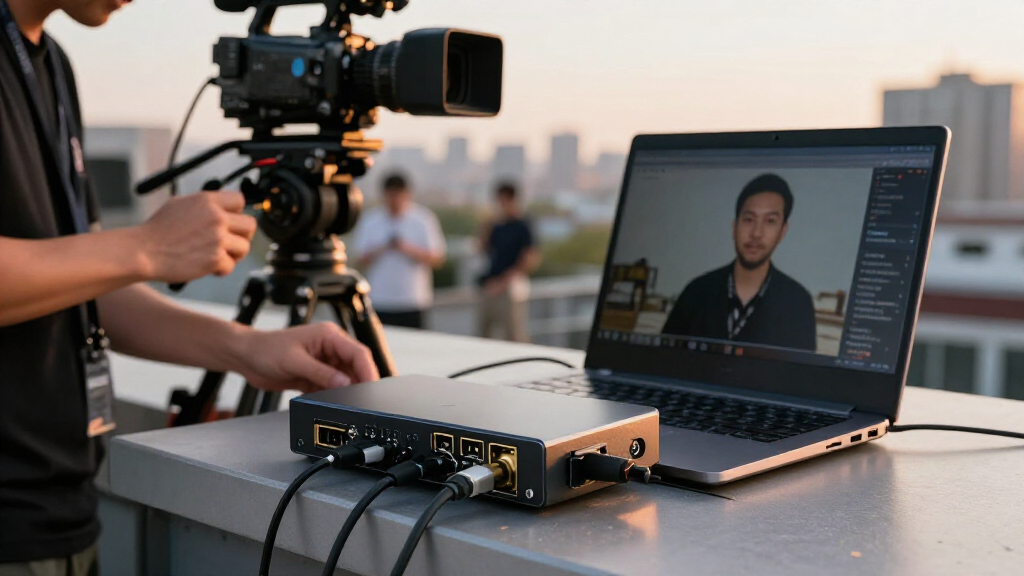
I compared these 15 cards by the details that affect actual capture workflows: stated input resolution, recording output and frame rate, connection type, pass-through or loop-out, audio options, and the likely complexity of setup. I treated 4K input, 4K pass-through, and 4K capture as separate capabilities; a card that accepts a 4K source but records at 1080p is not a substitute for a 4K recorder. I also weighed whether the product description gives buyers enough information to match the card to a camera, console, or computer.
The order favors products with clearer, more useful capabilities for their intended role, not simply products carrying a 4K label. Dedicated options from Elgato and j5create stand apart from basic USB adapters, while cards specifying 1080p60 output or pass-through can make more sense for streaming than for high-resolution archiving. Where the supplied product name leaves performance details unclear, I avoid assuming capabilities that are not stated; buyers should verify the exact model specifications and host requirements before choosing.
Factors to Consider When Choosing 4k Video Capture Cards
Before choosing among 4K video capture cards, decide what you need the card to do after it receives the signal. A lower-cost or simpler adapter may suit a 1080p stream, but it cannot become a 4K recorder just because its input accepts 4K. These factors help separate source compatibility from the output quality and workflow you actually want.
Separate 4K Input, Pass-Through, and Recording
Product listings may use “4K” to describe input compatibility, display pass-through, or the captured file, and those are different jobs. Check the maximum resolution and frame rate for both the signal entering the card and the recording sent to your computer. A card that accepts 4K but outputs 1080p can still suit streaming, where stable 1080p delivery matters more than retaining a 4K master. For editing, cropping, or future reuse, lower-resolution output may be a poor fit even if the source is 4K. Match the card to the result you need, rather than choosing by the largest resolution printed in the title.
Match Frame Rate to the Source and Use
Resolution alone does not describe motion quality. A 1080p60 output can be a better match for fast gameplay or fluid live video than a higher-resolution output capped at a lower frame rate. Check what your camera or console actually sends, then confirm that the card supports that resolution and frame rate together. Some listings state a maximum for one mode without making clear whether other modes are available, so verify the format table when possible. If your content is mostly presentations, interviews, or slower scenes, the highest frame rate may matter less than reliable compatibility.
Check USB Bandwidth and Your Computer
USB 2.0 and USB 3.0 should not be treated as interchangeable labels: the connection affects the data a card can move to the host and can limit available capture modes. Confirm the port type required by the card and whether your computer has a suitable port available without an adapter or hub. A card’s advertised maximum may also depend on software, operating system, and host performance. If you plan to capture while running a game, streaming software, or other demanding apps, leave headroom rather than assuming any compatible laptop can handle the full workload. Verify operating-system support and connection requirements before buying.
Decide Whether You Need Pass-Through
Pass-through or loop-out lets a source feed both the capture setup and a separate display, which is handy for console play or monitoring a camera image. It is not the same as recording at the same resolution being passed to the screen. If you already monitor on your computer, a card without loop-out may be enough and can simplify the setup. If you need a direct display connection, check the supported pass-through resolution and refresh rate alongside the capture output. Do not assume that a listing mentioning 4K pass-through also supports every 4K refresh rate or capture mode.
Plan the Audio Path Before You Stream
Video capture does not automatically solve audio routing. Decide whether sound should come from HDMI, a microphone connected to the card, or a separate interface, then check which connections the model provides. A microphone input can simplify a basic setup, but it may not replace a dedicated interface when you need multiple microphones, monitoring, or independent audio control. Test whether your streaming or recording software can select the video and audio devices as expected. Drawing the signal path before buying can prevent a setup where the picture works but the desired microphone or console audio does not.
Pay for the Workflow You Will Use
A dedicated capture device can be a better fit when clear mode support and a known workflow matter, while a compact USB adapter may be enough for straightforward 1080p streaming. Paying more makes sense when it buys a capability you will use, such as a higher recording mode, a needed loop-out, or a more suitable camera connection. It does not make sense to pay for 4K input if you only need a simple 1080p feed and your source already outputs that format. Treat unclear specifications as a reason to verify, not as proof of extra performance. Choose the simplest card that supports your source, target recording format, and monitoring setup.
Frequently Asked Questions
Does a capture card with 4K input record in 4K?
No. A 4K input specification only indicates that the card can accept a 4K signal; the captured output may still be 1080p or another format. This roundup includes products whose names or descriptions pair 4K input with lower-resolution output, so check the recording resolution and frame rate separately. If you need a 4K file for editing or archiving, confirm that the card explicitly supports 4K capture, not just input or pass-through. Also check whether your computer and software support that recording mode.
Should I choose a 1080p60 card or a 4K-capable card?
Choose based on the video you plan to deliver and keep, not the source’s highest available resolution. A 1080p60 card can suit smooth gameplay streams or other fast-moving content, while 4K capture matters more if you need high-resolution recordings for editing, cropping, or later reuse. Some 4K-capable cards still record at 1080p, so verify the output details before deciding. If your viewers and workflow are built around 1080p, a 4K input feature may add little practical value.
Do I need HDMI pass-through or loop-out for console capture?
You need it if you want the console signal to reach a separate monitor or television while the card sends video to your computer. Without pass-through, your setup may rely on a software preview, which can be less convenient for playing or monitoring. Check the pass-through resolution and refresh rate, because those may differ from what the card records. If you play through a computer preview or have another display route, loop-out may not be necessary.
Can I use a USB 2.0 capture card for 4K video?
A USB 2.0 model may accept a 4K HDMI input, but that does not mean it can record 4K over USB. Several products in this category use 4K input wording alongside lower-resolution output, so the capture limit is the deciding specification. USB 2.0 can be suitable for basic, lower-bandwidth capture, but buyers seeking higher-resolution or higher-frame-rate output should pay close attention to the stated connection and capture modes. Check the product’s exact output limits and your computer’s port requirements before choosing.
Which connection should I check if I want to use a camera as a webcam?
Check that the camera provides a compatible HDMI output and that the capture card supports the resolution and frame rate you want to send to your computer. A camera-oriented option such as the Elgato Cam Link 4K is designed for this type of HDMI-to-computer workflow, while cards with loop-out may be more useful when a separate monitor is part of the setup. Confirm whether the camera displays menus or overlays over HDMI and whether it can provide a clean feed. You should also verify that your video-call or streaming software recognizes the card as a video source.
Conclusion
For a dedicated capture setup, I’d start with the Elgato 4K S as the best overall pick, while the Elgato Cam Link 4K is my best choice for a camera-to-computer feed. For a console or camera workflow that needs a separate display connection, the UGREEN HDMI Capture Card with 4K 30Hz Input and Loop-Out is the specific-use option to examine. Buyers seeking a simpler, potentially lower-cost route can compare the USB 3.0 adapters, including the Guermok and Rybozen, but should confirm their exact capture modes before purchase; that makes them the value candidates rather than automatic winners. For beginners, I’d choose the card whose stated input, output, and connection match the setup most plainly, rather than the one with the most prominent 4K label. For a premium-oriented choice, the Elgato 4K S is the clearest dedicated option in this lineup, but verify that its supported recording modes meet your needs. The deciding question is simple: do you need 4K capture, 4K pass-through, or just a reliable 1080p stream?